10 minutes · IPTV Smarters Pro
Apollo Group TV on Fire TV Stick
Fire TV has no IPTV players in its store, so the app is side-loaded with Downloader. About ten minutes, most of it waiting.
The Fire TV Stick is the most common way people watch Apollo, mostly because it is cheap and moves between TVs. Amazon does not carry IPTV players in its store, so the app is side-loaded — which sounds harder than it is, and is the same procedure Fire TV owners use for any app Amazon does not stock.
Devices this covers
- Fire TV Stick 4K and 4K Max
- Fire TV Stick (3rd gen)
- Fire TV Stick Lite
- Fire TV Cube (2nd and 3rd gen)
- Amazon Fire TV built into Toshiba and Insignia sets
- Fire TV Stick (2nd gen) — works, but see the note below
Before you start
- Your Fire TV remote and the stick already set up on your Wi-Fi
- Your Apollo server URL, username and password from the portal
- The download code for the player, shown on your subscription page
Your server URL, username and password are on your subscription page in the portal, and in the email sent when the line was created. Copy them exactly — they are case-sensitive, and a trailing space pasted from an email is the most common reason a login is rejected. Open your subscription page.
Installing with IPTV Smarters Pro
Open search from the top menu
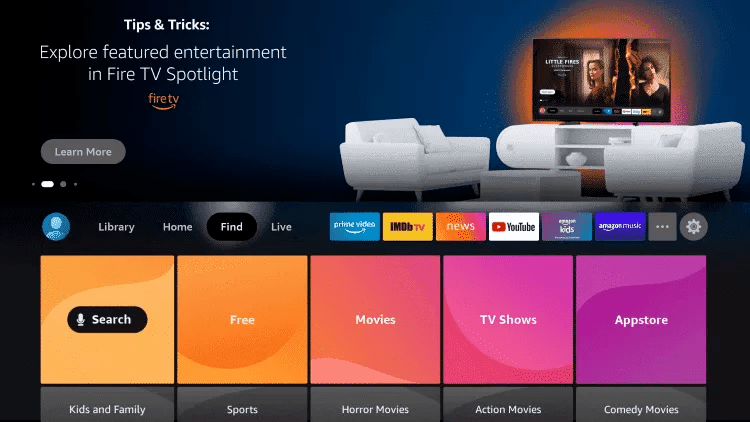
On the Fire TV home screen, move up to the row of menu items and select Find, then Search. This is Amazon's own search, not a browser.
Look for Downloader
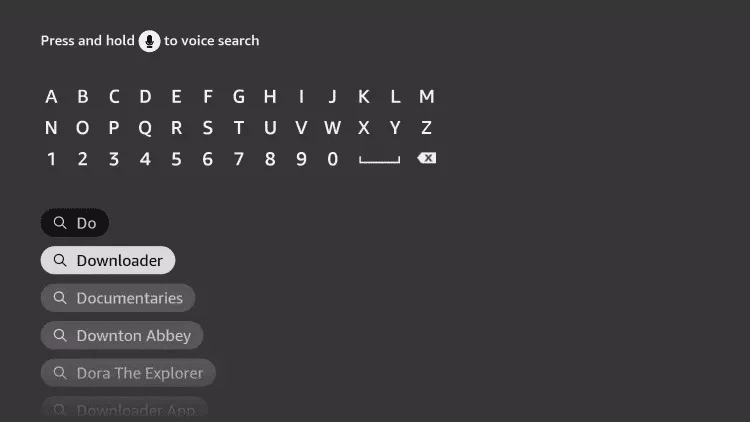
Type Downloader. It is a free orange-icon app from AFTVnews, and it is what lets the stick install an app that Amazon does not carry.
Install it and leave it open
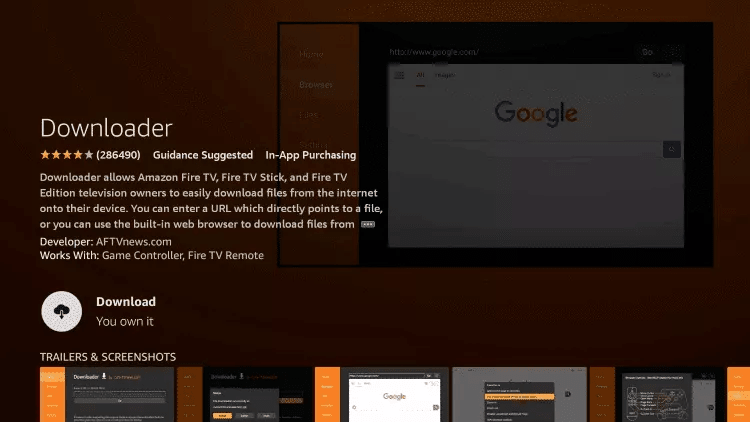
Select Download, wait for it to finish, then open it. Accept the storage permission it asks for — it needs that to save the installer file.
Go back to Settings → My Fire TV
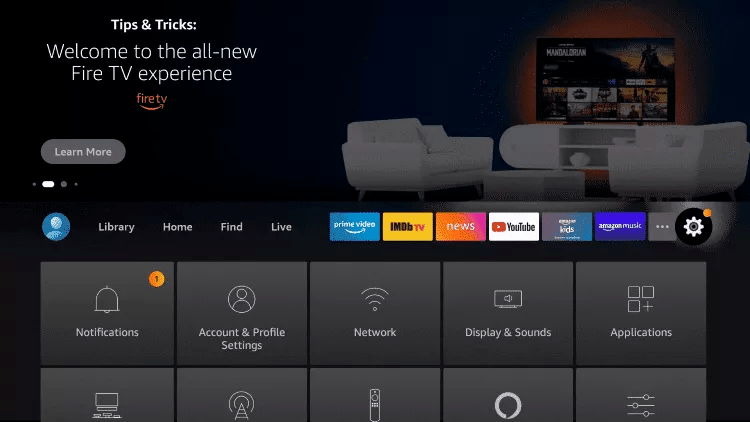
Press the home button, open Settings, then My Fire TV. On older sticks this is called Device instead.
Let Downloader install apps
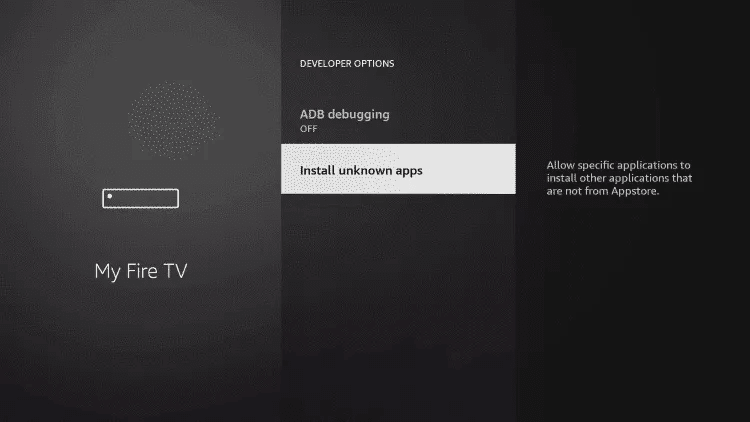
Open Developer options → Install unknown apps, find Downloader in the list and switch it on. Fire OS blocks the install silently if you skip this, with no error to tell you why.
Enter the download code
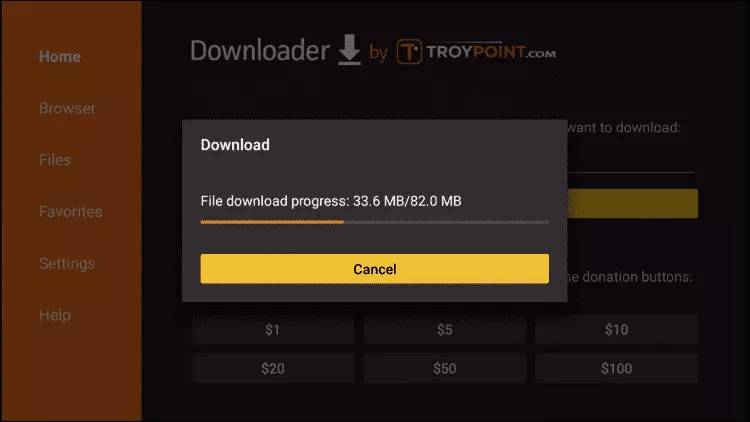
Back in Downloader, type the code from your subscription page into the URL box and press Go. Use the code rather than a full address — it is shorter to type on a remote and it always points at the current build.
Install, then delete the installer
Choose Install, and when it finishes choose Done and then Delete. The installer file is about 30MB and is no longer needed once the app exists.
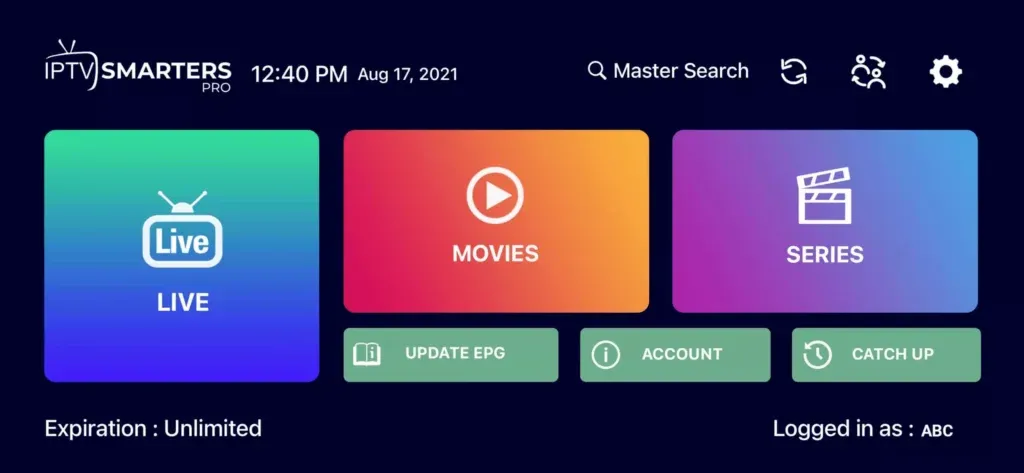
Choose the Xtream Codes login
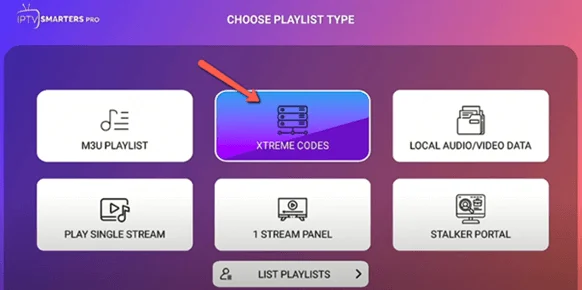
Open the player and pick Login with Xtream Codes API. This is the option that gives you a proper channel guide; the playlist option works but arrives without an EPG.
Type in your three values
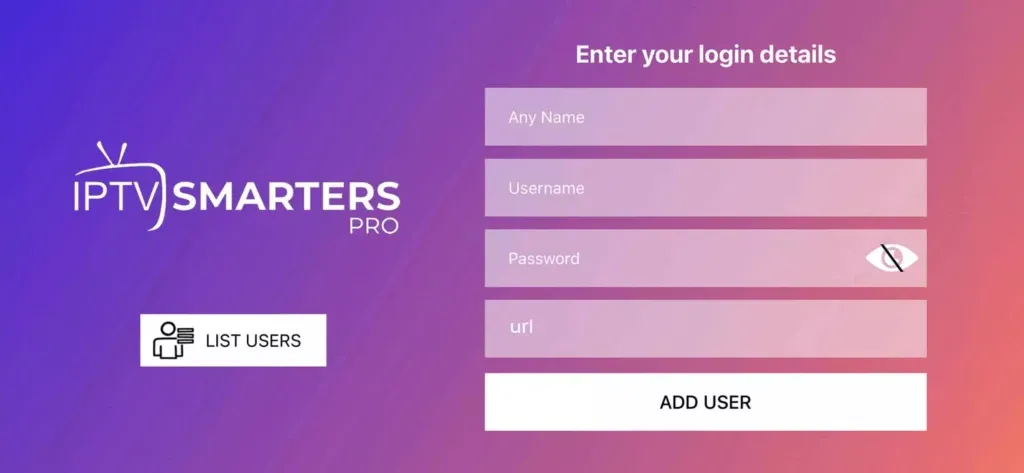
Give the line any name you like, then enter the username, password and server URL from the portal. The name is only a label on your own screen.
Wait for the first sync
The first load pulls the full channel list and seven days of guide data, so give it a minute or two. Later launches are immediate.
If the app installs but every channel buffers
The 2nd-generation Fire TV Stick struggles with 4K streams. In the player, open Settings and set the stream format to HLS, and pick an SD or HD bouquet for the channels you watch most. A Fire TV Stick 4K or 4K Max handles the full lineup without this.
Questions about Fire TV Stick
Why isn't the app in the Amazon App Store?
Amazon does not accept IPTV players into its store, so no provider has one there. The app is installed with Downloader instead, which is a free Amazon-approved app. The steps above are the whole process.
Will it slow the stick down?
No. The player is small and stores nothing locally beyond its settings. What does strain an older stick is 4K video, not the app — see the note below if you are on a 2nd-generation stick.
Can I use the Alexa voice remote to search?
Voice search inside the player is limited: Alexa searches Amazon's own catalogue, not your channel list. Use the player's own search box for channels and on-demand titles.
Can I move the stick to another TV?
Yes. The line is tied to your subscription, not to the TV. Unplug it, plug it into another set, and it carries on.
Other devices
Need a hand?
Support answers around the clock, and a line can be tested from a desktop in about a minute if you are not sure whether the problem is the device or the subscription.
Open the help centre