10 minutes · IPTV Smarters Pro
Apollo Group TV on Android Box
The same route as Android TV, with a longer path through the settings menus on most boxes. Around ten minutes.
An Android box turns any TV with an HDMI port into a smart one, and it is the usual answer when a set is too old for its own app store. Setup is the Android TV procedure with a longer walk through the settings menus, which differ from box to box.
Devices this covers
- Any Android TV box on Android 7 or later
- NVIDIA Shield TV, Mecool, Ugoos and similar
- Generic boxes — see the note below before buying
Before you start
- An Android TV box on the internet
- Your Apollo server URL, username and password from the portal
- The download code from your subscription page
Your server URL, username and password are on your subscription page in the portal, and in the email sent when the line was created. Copy them exactly — they are case-sensitive, and a trailing space pasted from an email is the most common reason a login is rejected. Open your subscription page.
Installing with IPTV Smarters Pro
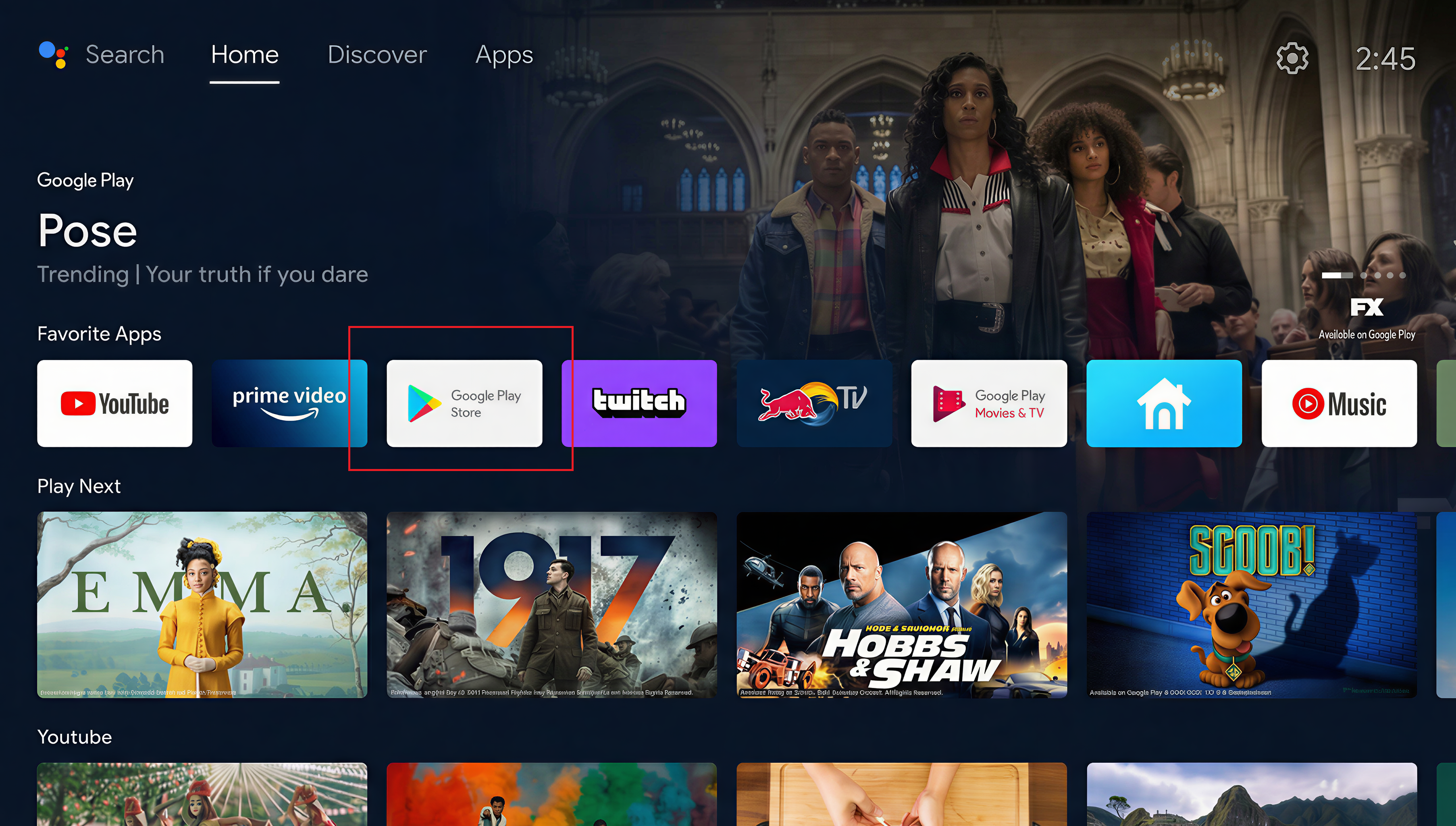
Open the apps menu
From the launcher, open Apps and find the Play Store.
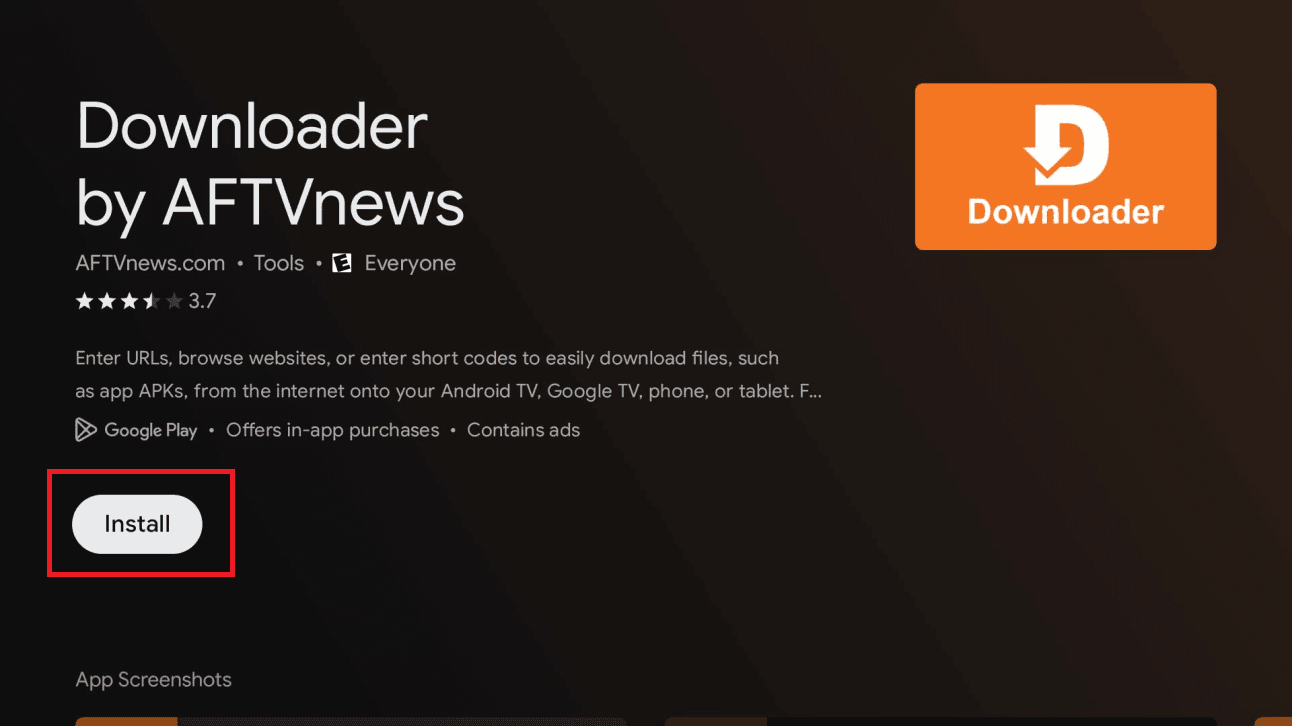
Install Downloader
Search Downloader by AFTVnews and install it.
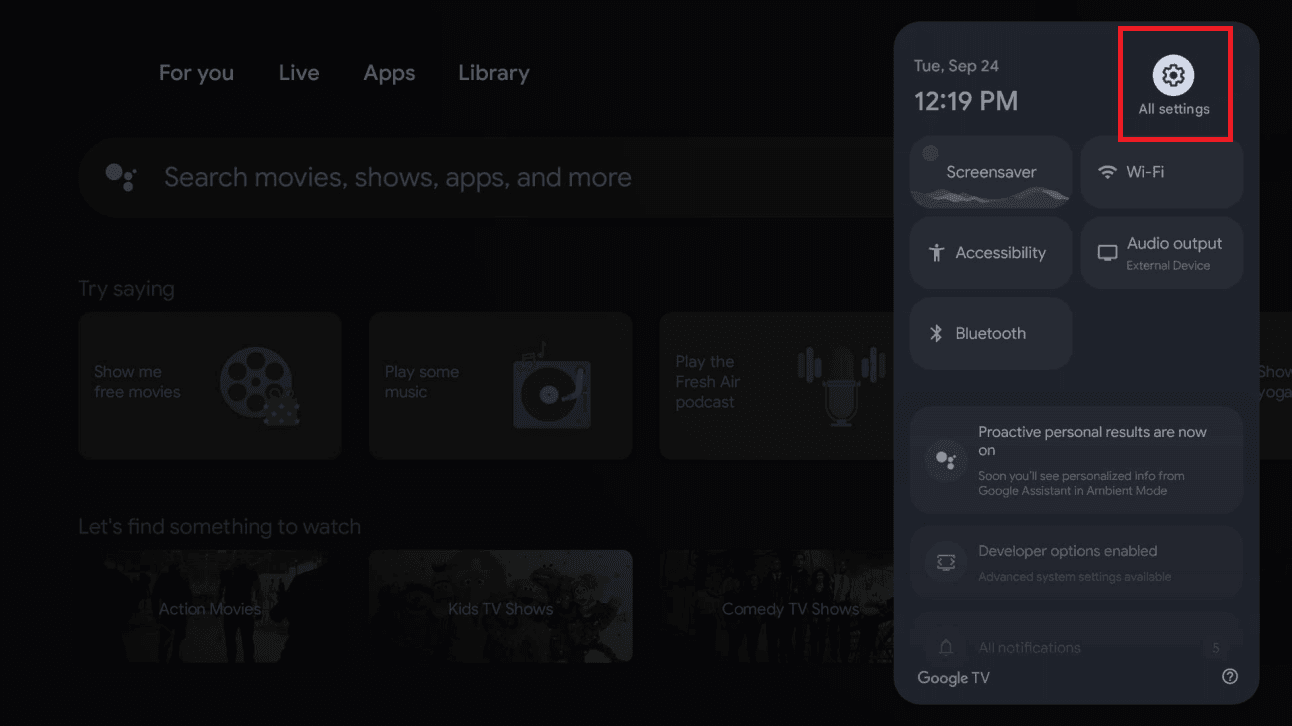
Open All Settings
Go to the gear icon, then All settings.
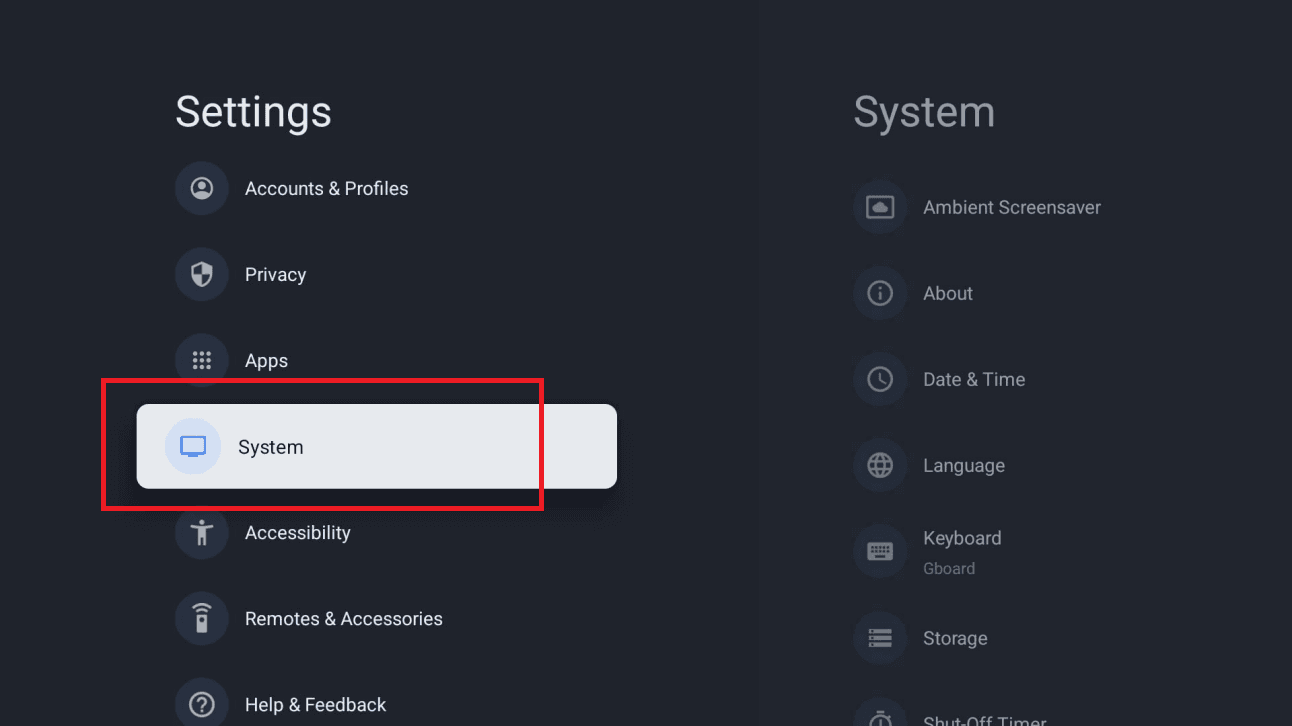
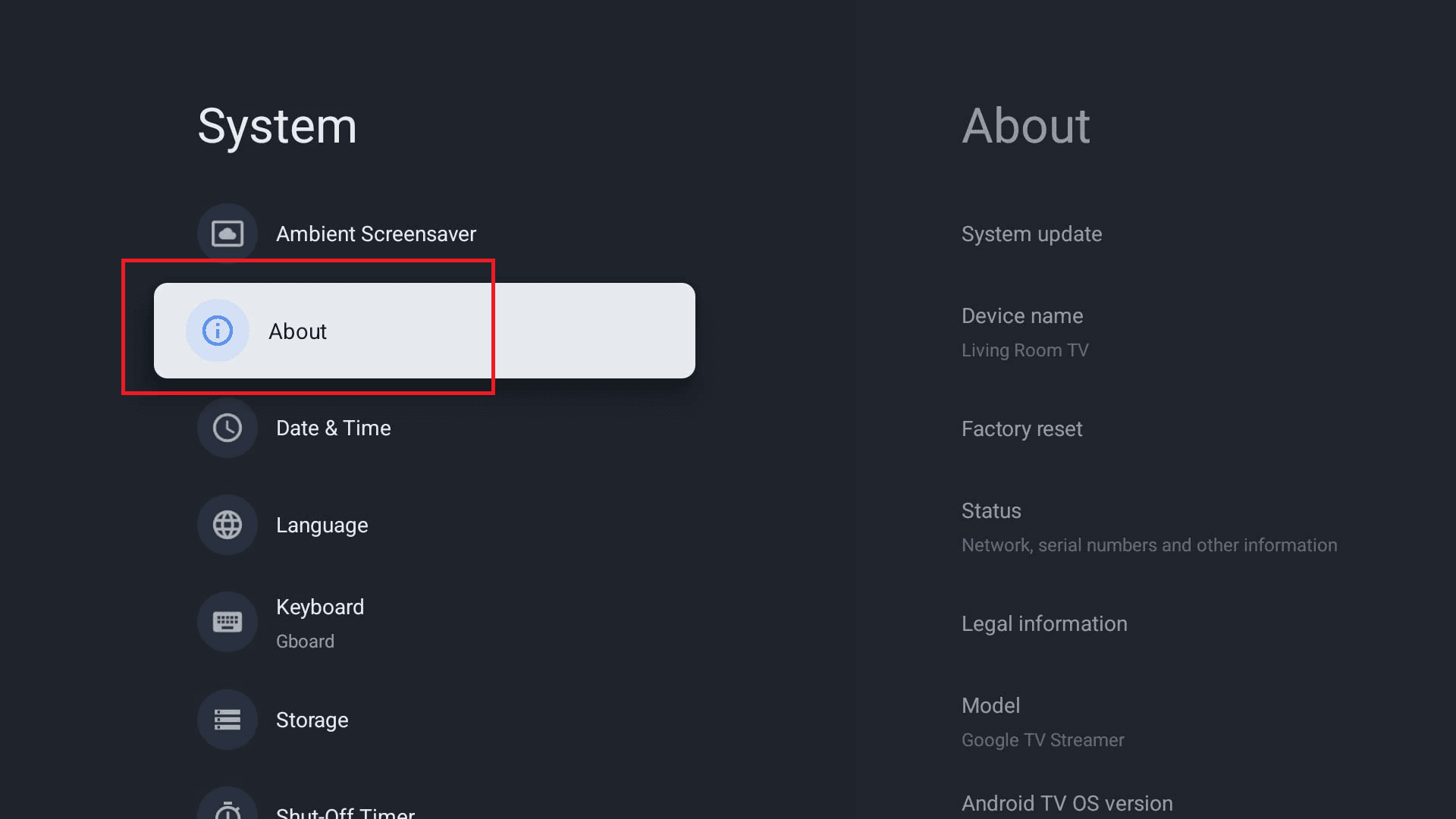
Go to System
Open System. On boxes running a custom launcher this may be called Device Preferences.
Open About
Select About to reach the build number.
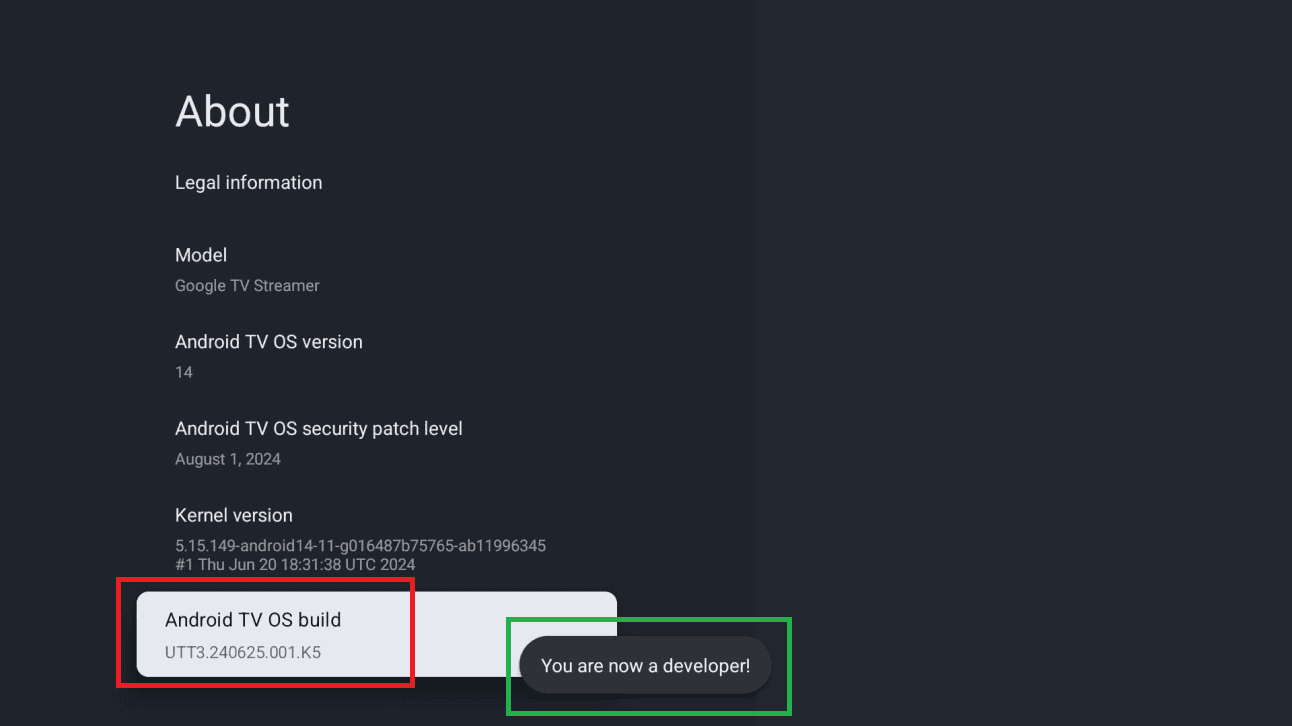
Tap Build seven times
Keep selecting Build until the box confirms developer options are on.
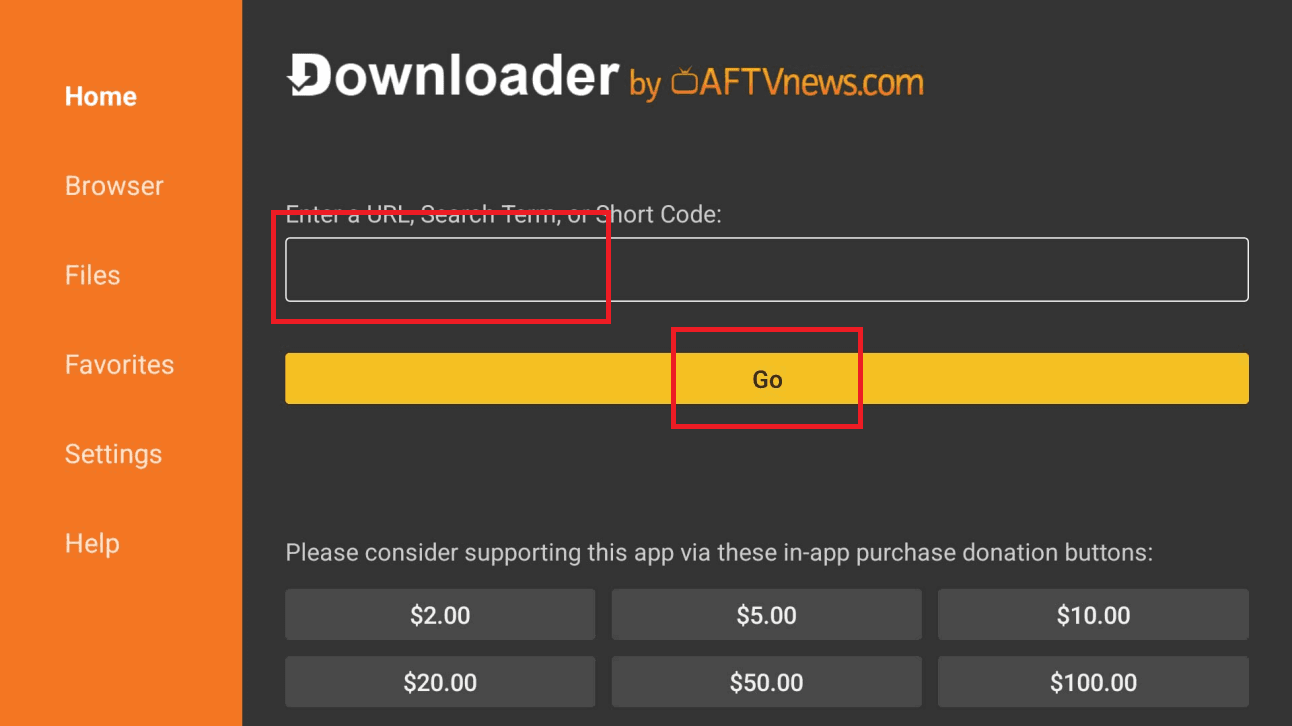
Enter the download code
In Downloader, type the code from your subscription page and press Go.
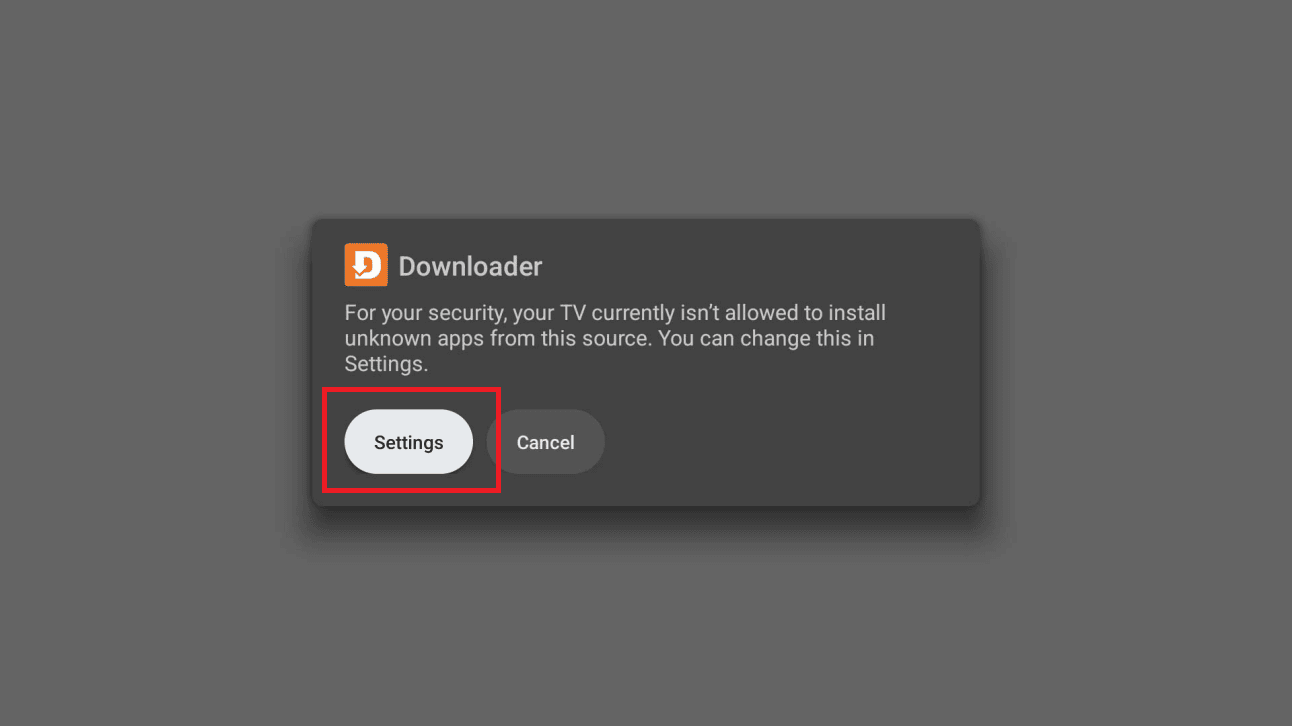
Allow the install
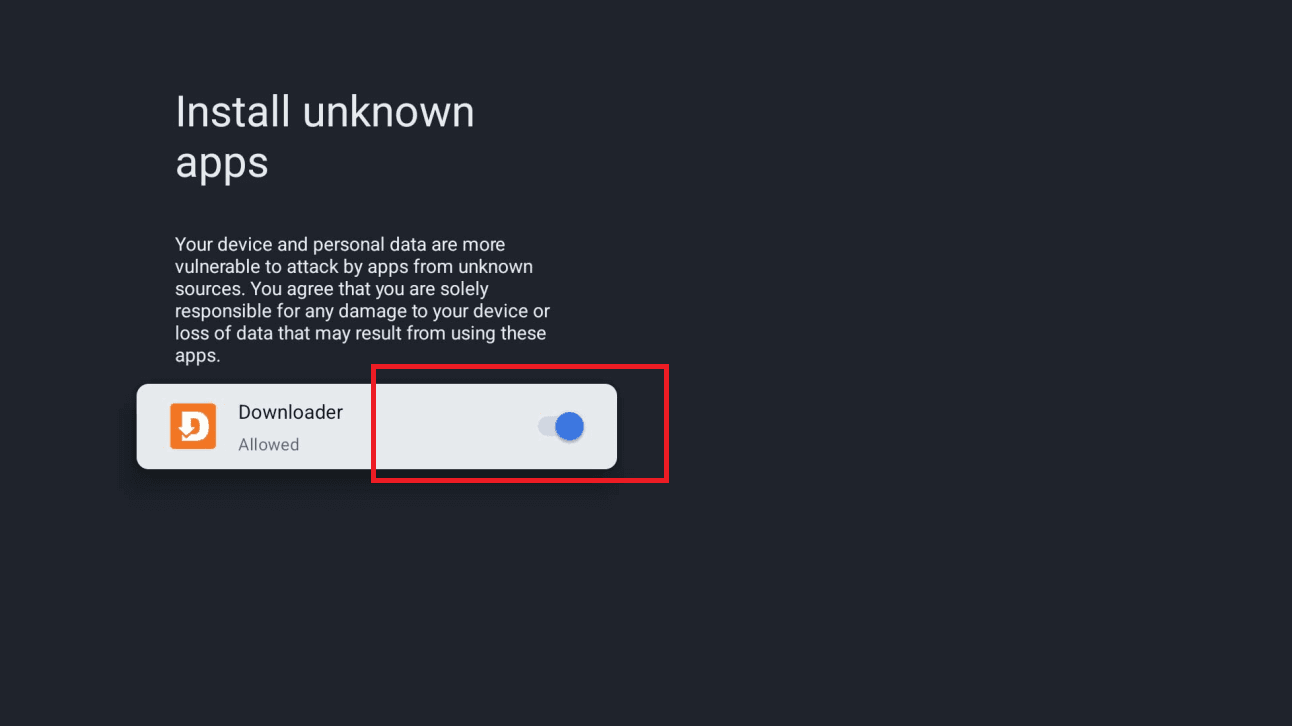
Follow the prompt to the unknown-sources screen and switch Downloader on.
Confirm the toggle took
The Downloader entry should now read as allowed. Press back twice and the install continues.
Install, open and sign in
Install the app, open it, choose the Xtream Codes login and enter your username, password and server URL from the portal.
If the box came with apps already installed
Boxes sold pre-loaded with streaming apps often run an old Android build with modified system settings, and side-loading behaves unpredictably on them. A factory reset before starting is usually faster than diagnosing it.
Questions about Android Box
Which box should I buy?
One running certified Android TV rather than a modified build. Certified boxes get security updates and behave predictably; the cheapest generic boxes rarely do either.
My box came with streaming apps already on it. Is that a problem?
Often, yes. Pre-loaded boxes usually run old modified firmware where side-loading behaves strangely. A factory reset before starting saves time.
The menu names don't match the screenshots.
Manufacturers rename these menus freely. Look for About or Device Preferences to find the build number — that is the only step that varies much.
Other devices
Need a hand?
Support answers around the clock, and a line can be tested from a desktop in about a minute if you are not sure whether the problem is the device or the subscription.
Open the help centre